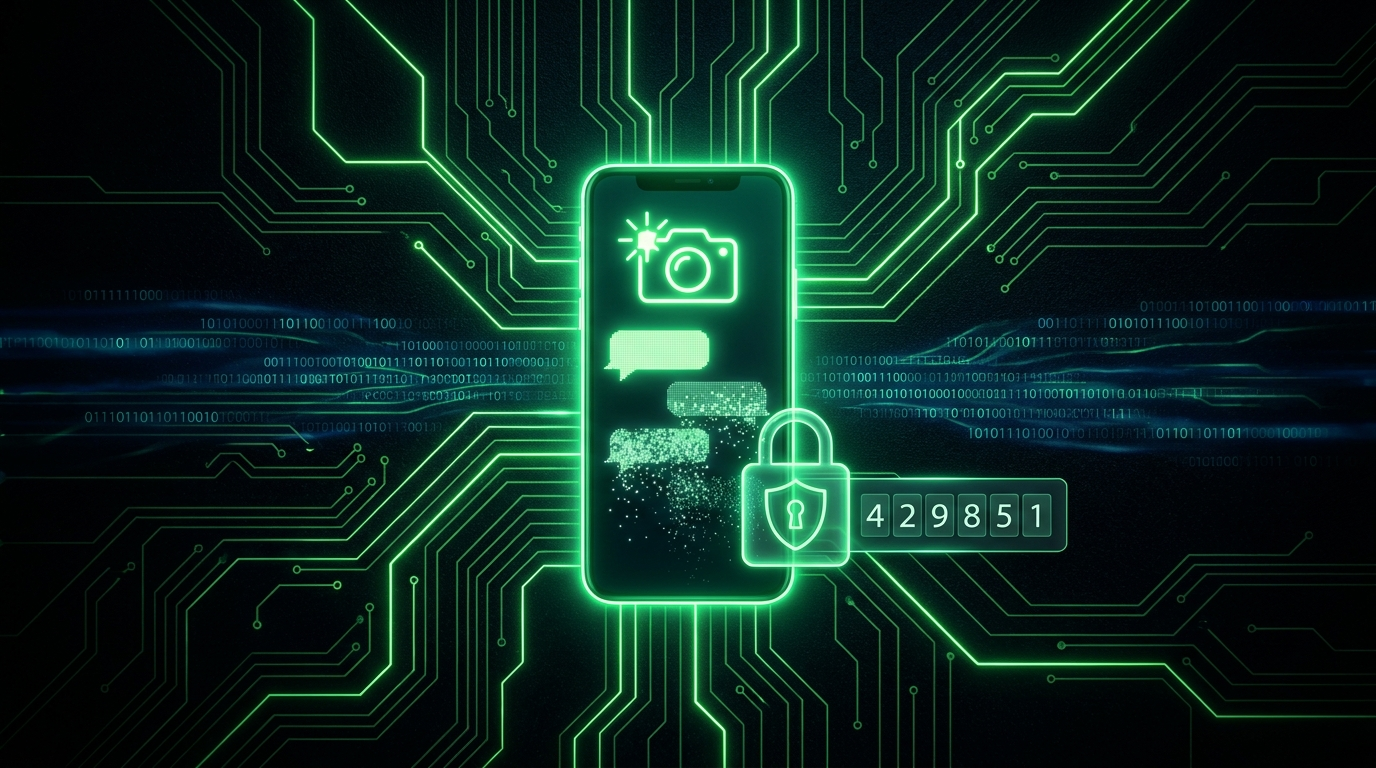
What Is Actually at Stake: More Than a Password
Most account security advice treats every platform the same, but Snapchat holds a specific kind of exposure that few other apps do. My Eyes Only stores your most private photos behind a second passcode inside the app, Snap Map can broadcast your live location to a list of friends, and your chat history disappears by design, which means there is no cloud backup sitting quietly in the background the way there is with iMessage or WhatsApp. When a Snapchat account is stolen, the attacker is not just posting spam. They may be looking at your location history, digging for anything saved in My Eyes Only, or using your identity to send scam links to your friend list because a message from "you" gets opened without suspicion.
There is also a straightforward financial angle. Short, rare, or number-only usernames resell for real money on gray market forums, and account thieves specifically hunt for older accounts with short handles. If your username is three or four characters, or a recognizable word, you are a more attractive target than the average user, not a less likely one.
The usual way in is a phished password from a fake "your account will be deleted" message, or a reused password that leaked from some unrelated site years ago and still works because you never changed it. Two-factor authentication, which Snapchat's own settings sometimes label as login verification, makes a stolen password useless on its own, since the attacker also needs the rotating code from your phone.
Turning On Two-Factor Authentication
- Open Snapchat and tap your profile icon in the top left corner.
- Tap the gear icon to open Settings.
- Scroll to Two-Factor Authentication, listed under Privacy Controls or Account Security depending on your app version.
- Tap Continue and choose your verification method.
Choose the Authentication App Over SMS
Authentication App (Recommended)
- Select Authentication App as your method.
- Snapchat can set it up automatically by opening your installed authenticator, or manually by showing you a secret key to enter yourself.
- Scan the QR code, or paste the key, into Google Authenticator, Authy, or any standard TOTP app.
- Enter the six digit code the app generates to confirm setup.
The code refreshes every 30 seconds and is generated entirely on your device with nothing sent over the network for anyone to intercept. Our TOTP explainer breaks down how that works, and our free 2FA generator shows a live demo secret producing codes right in your browser.
SMS Codes (Weaker, but Available)
Snapchat can also text you a code. It works, but SMS is vulnerable to SIM swap attacks, and this matters more for Snapchat's audience than people usually assume. A large share of Snapchat's user base is teenagers, and teenage phone numbers turn out to be surprisingly easy targets for social engineering at carrier retail stores, since a determined attacker only needs a name, birthdate, and a bit of confidence to convince a store employee to port a number. Our SMS 2FA risks post covers the mechanics. If you or your teenager can use the app method, do that instead.
Write Down Your Recovery Code Before You Do Anything Else
Once 2FA is active, Snapchat generates a single Recovery Code, and it is the only way back into your account if your phone is lost, broken, or wiped.
- In Two-Factor Authentication settings, tap Recovery Code.
- Generate it, then store it somewhere that is not your phone, such as a password manager entry or a piece of paper kept at home.
Snapchat's support process for 2FA lockouts has a reputation for being slow and unhelpful compared to larger platforms, so this code deserves the same treatment as a house key, not a note you plan to remember later. Our backup code storage guide covers where to keep it safely.
The Device Migration Trap
Because Snapchat deliberately does not back up your chat history to the cloud the way many other messaging apps do, moving to a new phone is a different experience than you might expect from Instagram or WhatsApp. Your memories saved in the Memories tab do carry over since those are stored server side, but ordinary chats that have already disappeared stay gone regardless of which device you sign in on. This means a lost or wiped phone is not just a login inconvenience, it can be a genuine loss of conversation history that no recovery code brings back. The practical takeaway is to treat your recovery code and your phone itself as equally important: back up anything in Memories you care about, and do not delay replacing a lost device, since the login problem is fixable but the chat history problem usually is not.
Clean Out Your Forgotten Devices List
Snapchat keeps a running list of devices that are allowed to skip the 2FA prompt because they were previously verified. This list quietly grows over the years and rarely gets checked.
- Go to Settings > Two-Factor Authentication > Forget Devices.
- Remove anything you no longer recognize or no longer own. A phone you sold two years ago that is still trusted is an open door for whoever owns it now.
The "your streaks will be deleted, verify your account" message is a phishing classic aimed squarely at Snapchat's userbase. Real Snapchat never asks for your password through a chat link, and it never needs you to "confirm" anything to save a streak.
Location and Privacy Settings Worth Checking Alongside 2FA
- My Eyes Only passcode: This is separate from your login password and should never reuse your phone's unlock PIN. If someone guesses your phone PIN, you do not want it to also open your most private saved content.
- Snap Map ghost mode: If your location is visible to more than close friends, switch to Ghost Mode or a smaller custom list under Snap Map settings. Location exposure is a separate risk from account theft and worth its own check.
- Verify your email and phone number in settings so account recovery paths can actually reach you if something goes wrong.
- Rotate to a unique password if your Snapchat password is reused anywhere else. Our password generator creates a strong one in seconds.
- Contact Me settings: Limiting who can message you to friends only cuts off most phishing DMs before they ever reach you.
Frequently Asked Questions
I lost my phone and cannot find my recovery code. Is my account gone?
Try logging in with your password on a new device first, since the 2FA prompt itself sometimes offers alternate recovery options. If your linked email or phone number is still accessible, Snapchat may be able to verify you through one of those instead. Without your phone, recovery code, or a working linked email or number, recovery odds are genuinely low, which is exactly why the recovery code matters as much as it does.
Will enabling 2FA expose my location to anyone new?
No. Two-factor authentication only affects how you log in. Snap Map visibility, Ghost Mode, and your friend list are completely separate settings and are untouched by turning on 2FA.
Does Snapchat 2FA work with any authenticator app, or only Snapchat's own?
Any standard TOTP app works, including Google Authenticator, Authy, Microsoft Authenticator, Aegis, 2FAS, or a password manager with built in TOTP support. One app can hold Snapchat's code right alongside every other account you protect.
Why does Snapchat keep asking me for a code on the same phone?
Reinstalling the app or clearing its stored data resets device trust, which triggers a fresh prompt even on hardware Snapchat has seen before. If this happens repeatedly without a reinstall, check that your phone's date and time are set to automatic, since a clock that has drifted breaks TOTP codes entirely. Our codes not working guide has the full fix list.
My chats disappeared after I got a new phone even though I still had 2FA set up. What happened?
This is expected, not a bug. Snapchat does not store ordinary chat history in the cloud the way Memories are stored, so a new device inherits your account and your saved Memories but not conversations that had already vanished on the old phone. Setting up 2FA correctly protects the account itself, it does not create a chat backup that never existed.
Should my teenager's Snapchat account have 2FA turned on?
Yes, with the recovery code kept by a parent rather than only the teen. It protects against account and username theft, and it adds a natural checkpoint whenever the account logs in on an unfamiliar device. Our parents' security guide covers the full family setup, including how to talk through Snap Map location sharing at the same time.