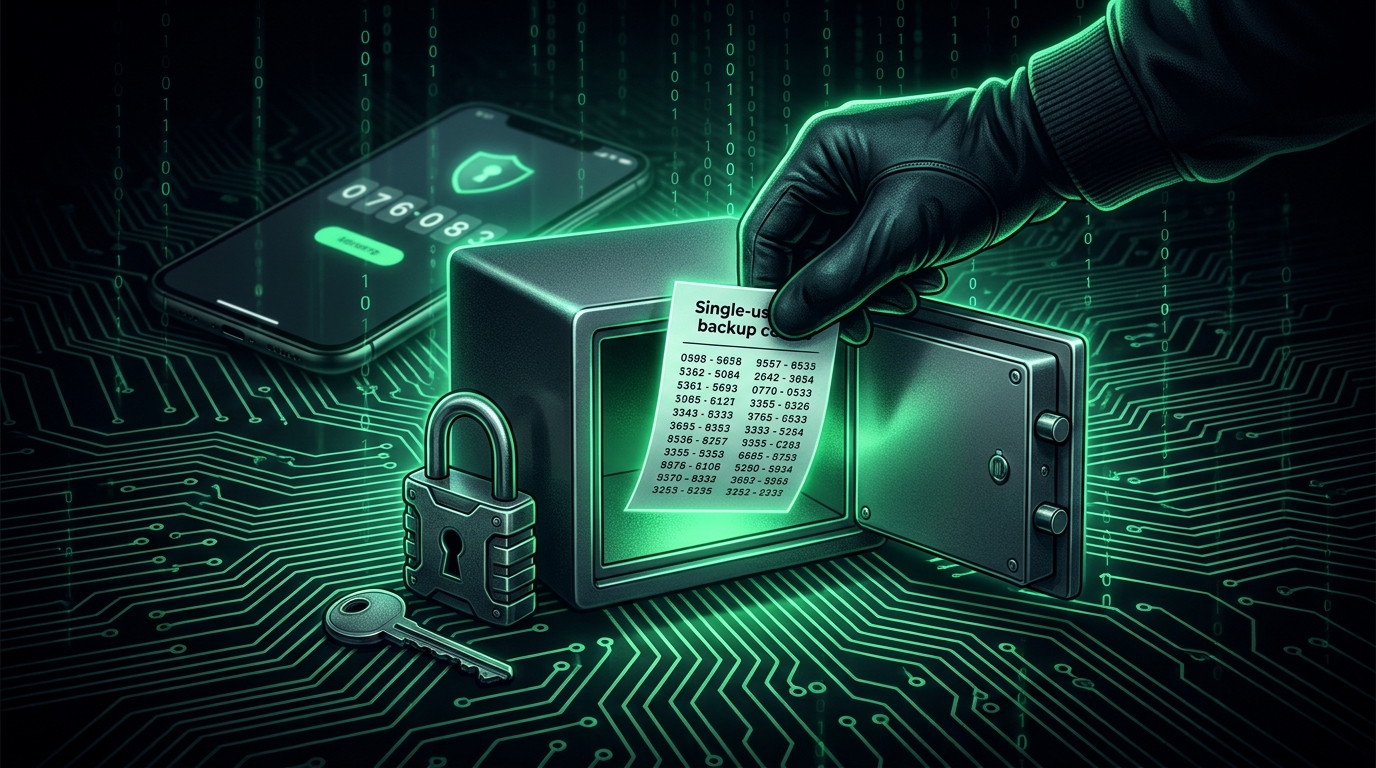
The Fire Escape Problem
Backup codes exist for exactly one scenario: the day your second factor is gone. Phone stolen, authenticator app wiped, hardware key through the washing machine. On that day, a backup code is the difference between a thirty second recovery and weeks of support tickets with uncertain endings (Discord and some exchanges will simply never let you back in: we covered the stakes in our lost device guide).
The catch: people store their fire escape inside the burning building. Codes screenshotted onto the same phone that gets stolen. Codes in a notes app synced to the account they unlock. Codes downloaded once and lost in a Downloads folder purge. This post is about storage that actually works when needed.
The Two Requirements That Fight Each Other
Good backup code storage must be:
- Available to you in disaster: survives losing your phone, your laptop, or both at once.
- Unavailable to everyone else: a thief with your codes plus your password walks through 2FA like it isn't there.
Every storage choice is a trade between these. The strategies below are ranked by how well they balance it.
Tier 1: The Recommended Setups
Password Manager Entry (Best for Most People)
Store each account's codes in your password manager, in the same entry as its password (secure notes field). Why it works: encrypted, synced across devices (survives any single device loss), searchable, and backed up by the manager's infrastructure. One rule makes it safe: the manager itself must not depend on codes stored inside it: protect it with a memorised passphrase (our passphrase guide) and a second factor that lives elsewhere, like a hardware key or printed recovery kit.
Paper in Two Places (Best Disaster Resilience)
Print or handwrite the codes. One copy at home in a drawer, safe, or folder your family could find; one copy elsewhere: workplace drawer, a trusted relative's house, a bank deposit box. Why it works: immune to every digital attack ever invented, survives all device loss simultaneously, and the two locations cover fire and burglary. Label them usefully but not invitingly: "recovery sheet" beats "GOOGLE BACKUP CODES" on the header.
The quiet test of any scheme: if your phone and laptop both vanished today, could you be back inside your email within an hour, from a borrowed computer? If not, the codes aren't stored: they're decorating.
Tier 2: Acceptable With Care
- Encrypted file on offline storage: A password protected archive on two USB drives works if you'll actually maintain it: the failure mode is stale codes after you regenerate, and forgotten archive passwords. Use a passphrase you'll retain, and refresh the file when codes change.
- Cloud drive, encrypted first: An encrypted container in Google Drive or iCloud is fine: the encryption is what makes it so. An unencrypted "backup codes.pdf" in the same cloud account the codes unlock is circular: whoever breaches the account gains its own escape hatch.
Tier 3: The Common Mistakes
- Screenshot in the camera roll: Lives on the phone whose loss triggers the emergency, and syncs to photo services where a breach exposes it. The most popular method and the worst.
- Plain note in a synced notes app: Same circularity, plus notes apps are a known first stop for account thieves.
- Email drafts or self-sent emails: Your inbox is the single most likely account to be attacked, and its search box makes "backup codes" a gift.
- One printout, nowhere specific: Paper works when placed deliberately. "Somewhere in my desk, probably" fails the borrowed-computer test above.
Maintenance: The Part Everyone Skips
- Regenerating invalidates. When you generate fresh codes on a site, every stored copy of the old set is dead paper. Update your storage the same minute.
- Cross off used codes. Each is single use; a sheet of spent codes is false comfort.
- Audit yearly. New accounts with 2FA appear; make sure each has codes saved. Ten minutes covers it, ideally alongside the rest of an annual security review (password health via our strength checker, session audits, the works).
- Know the fallback ladder per account: most services accept backup codes OR a second registered method. Registering two independent factors (app plus hardware key: see our key guide) means codes become the third line, not the only one.
Special Cases Worth Extra Thought
- Your email account: The root of your recovery tree: everything else resets through it. Its codes deserve the paper treatment even if everything else lives in the manager. Setup details: Gmail and Microsoft.
- Crypto exchanges: Alongside backup codes, the TOTP secret key shown at enrollment (that Base32 string under the QR) is itself a backup: stored offline, it regenerates your codes in any app: our TOTP generator demonstrates with any test secret. Full exchange hardening in our crypto 2FA guide.
- Family access: For the accounts your family would need in an emergency, the paper copy's location belongs in whatever "if something happens to me" arrangement you keep. Grim to set up, priceless to have.
Frequently Asked Questions
How many backup codes do services give, and do they expire?
Typically eight to twelve single use codes. They don't expire by time: each dies when used, and the whole set dies when you regenerate. Running low? Regenerate early and update storage, rather than riding the last code.
Is storing codes in the same password manager as the password "putting all eggs in one basket"?
It concentrates risk in the manager, yes: which is why the manager gets your best passphrase and a hardware-backed second factor. For most people, that well-defended basket beats scattered, unmaintained hiding spots. The paper copy at home covers the manager lockout scenario.
Should I encrypt the paper copy somehow?
Light obfuscation is reasonable (omitting which service each sheet belongs to, keeping sheets and account list separate). Full home-made ciphers mostly lock out future-you. A locked drawer plus an unlabeled sheet already defeats every realistic burglar, who is there for electronics, not paperwork.
What's the difference between backup codes and the TOTP secret key?
Backup codes are a short list of one-time passes around the 2FA gate. The TOTP secret is the permanent key that generates every rotating code: back it up and you can restore your authenticator itself. Both are worth saving; the secret is the more powerful (and more dangerous to expose) of the two. Basics in our backup codes explainer.
I found old codes: how do I know if they still work?
You can't test one harmlessly (using it consumes it), but you can check the account's security settings: most show when codes were generated and how many remain. When in doubt, regenerate a fresh set and restore order.