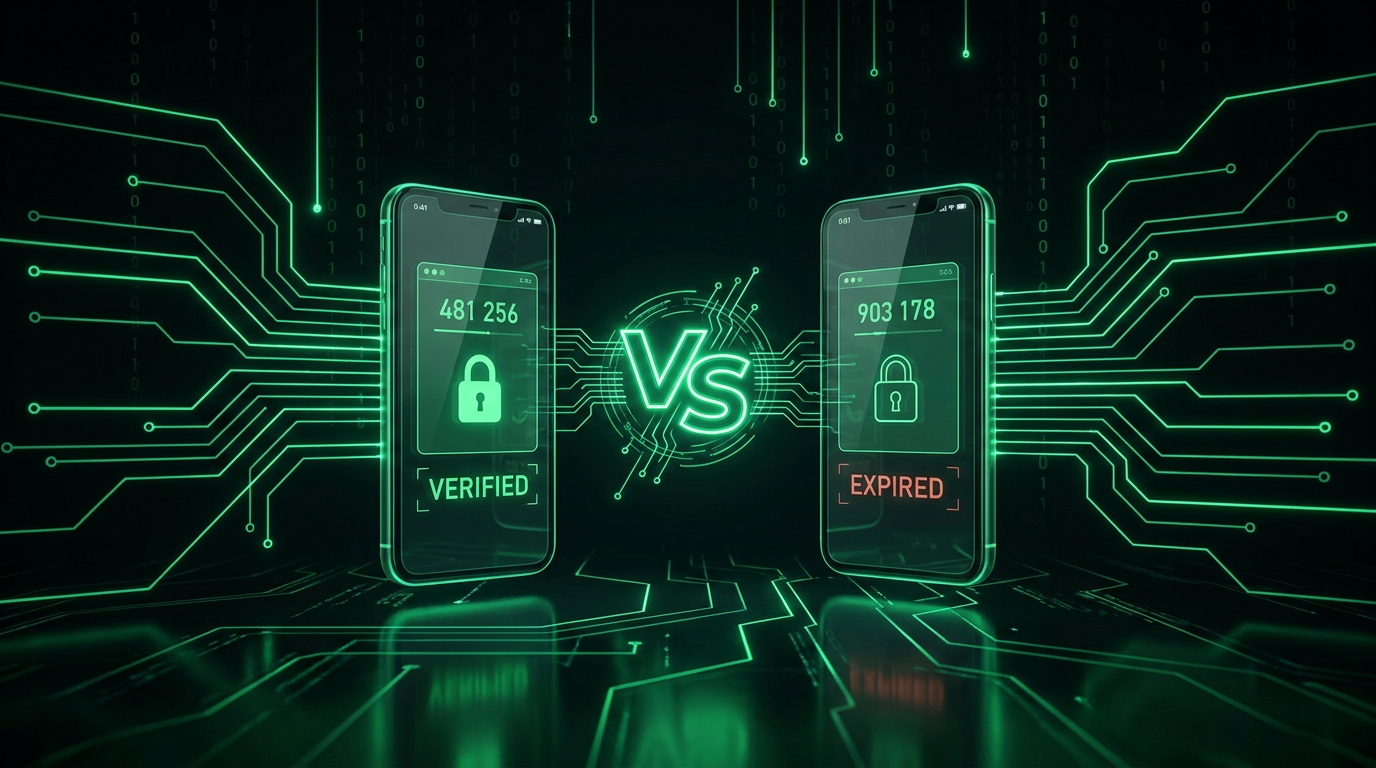
Same Standard, Different Philosophy
Here's the part most comparisons bury: for standard TOTP codes, the two apps are interchangeable. Both implement the open TOTP standard (RFC 6238), both scan the same QR codes, and both produce identical six digit codes for the same secret. Your bank, Facebook, and GitHub work equally in either. The mathematics doesn't care about the logo. (Want proof? Any TOTP secret produces the same codes in our browser based generator too.)
The real differences live around the codes: backup strategy, push notifications, enterprise features, and each company's ecosystem tricks. Those differences are bigger than most people expect, and picking the wrong one for your situation can mean the difference between a smooth account recovery and a genuine lockout.
A Short History That Explains the Trust Gap
Google Authenticator launched in 2010 with a deliberately minimal design: generate codes, store them locally, nothing else. For over a decade it had no cloud backup at all. Uninstall the app or lose the phone without saved backup codes, and every account tied to it needed a manual, site by site recovery process. That design choice caused years of forum threads from locked out users, and it is why so many long time security professionals still recommend independent apps out of old habit.
In April 2023, Google finally added Google account sync for Authenticator entries, closing the biggest complaint the app ever had. The trade-off arrived at the same time: synced codes now depend on the security of your Google account, a point we come back to below. Microsoft Authenticator, launched a few years later, shipped with cloud backup from early on, tied to your Microsoft account by default, and added push approval and passwordless sign in as its differentiators rather than playing catch up on backups.
Head to Head
| Feature | Microsoft Authenticator | Google Authenticator |
|---|---|---|
| Standard TOTP support | Yes | Yes |
| Cloud backup | Yes (Microsoft account, or iCloud Keychain backup on iOS) | Yes since April 2023 (Google account sync) |
| Push approve/deny | Yes, for Microsoft accounts, with number matching | No push; codes only (Google's own account prompts live inside Android/Gmail, separate from this app) |
| Passwordless sign in | Yes, can replace your Microsoft password entirely | No |
| App lock (biometric) | Yes | Yes (privacy screen) |
| Multi-device sync | Via backup restore on a new device | Yes, synced entries appear on any device signed into the same Google account |
| Export to another app | No direct export (restore happens via Microsoft account sign in) | Yes, QR based transfer built into the app |
| Enterprise / work account support | Deep: Entra ID (Azure AD) join, Conditional Access, company portal integration | None: consumer app only, no enterprise management layer |
| Platforms | iOS, Android | iOS, Android |
| Desktop app | No official app, but Windows 11 has a built in Authenticator-linked passkey flow | No official desktop app |
Where Microsoft Authenticator Wins
- Microsoft-heavy lives: If your world is Outlook, Microsoft 365, Xbox, or a work Entra ID account, the push notifications with number matching are smoother and safer than typed codes, and passwordless sign in genuinely works. Our Microsoft account 2FA guide shows the setup.
- Number matching: Typing the two digit number from the login screen into the phone kills approval fatigue attacks (spamming prompts until someone taps yes out of habit or annoyance). It is the best push implementation in mainstream use, and Microsoft made it mandatory across its consumer and enterprise apps after repeated real world abuse of simple accept/deny prompts.
- Enterprise device compliance: IT departments managing Entra ID can require the app itself, tie sign in to a compliant, managed device, and revoke access company wide the moment someone leaves. None of that exists in Google's consumer app.
- It moonlights as a passkey holder and password autofill if you want fewer apps on your phone.
Where Google Authenticator Wins
- Simplicity: It does codes, quickly, with near zero interface to learn. For "I just want the numbers", it remains the cleaner tool, and its list view scales well once you have dozens of accounts.
- Cross-device sync: Since the 2023 update, entries sync through your Google account and appear automatically on any device you sign into, with no manual restore step and no separate backup file to manage.
- Painless migration: The export QR feature moves your accounts to a new phone (or a different app entirely) in seconds, scanning a batch QR rather than re-adding each account one by one. Full walkthrough in our transfer guide.
- No account lock-in beyond Google: because export is built in, you are never structurally stuck inside the app the way Microsoft's restore-only model can feel.
Migration Friction: What Actually Goes Wrong
Moving between the two apps is more fiddly than either company's marketing suggests, because neither company built a direct import path from the other's format. In practice:
- Google to Microsoft: Google's export QR is proprietary to Google Authenticator and compatible apps; Microsoft Authenticator cannot read it directly. You will re-enroll each account manually: open the site's security settings, remove the old authenticator, add a new one, scan into Microsoft Authenticator.
- Microsoft to Google: Microsoft Authenticator has no bulk export at all. Every account needs the same manual re-enrollment dance, site by site.
- The safe order of operations: add the new app's code as a second authenticator on each site before removing the old one, confirm the new code works, then remove the old entry. Doing it in the opposite order is the single most common way people accidentally lock themselves out mid migration.
- Time cost: for someone with 15 to 20 accounts, budget 30 to 45 minutes for a full manual migration. It is tedious, not technically hard.
The Backup Question (Read This Part)
Both apps now solve the classic lost-phone disaster through cloud backup, and both create the same subtlety: your 2FA secrets become as secure as the cloud account they are backed up to. If your Google account holds your synced authenticator entries, and that account itself is compromised, the attacker holds your second factors too. Same logic for Microsoft: a compromised Microsoft account can, in some configurations, restore your authenticator entries onto an attacker's new device.
The practical resolution: protect the anchor account with the strongest method available (a hardware key or passkey rather than codes it stores about itself), and keep offline backup codes for your critical accounts regardless. We dug into this trade-off in is Google Authenticator's cloud backup safe? and our backup codes guide.
An authenticator app without any backup plan isn't security, it's a lockout scheduled for the day your phone breaks. Whichever app you choose, choose its backup story consciously.
Honourable Mentions
The choice isn't binary. Authy offers multi-device with its own encryption passphrase; 2FAS and Aegis (Android) are excellent open source options with local encrypted exports; password managers like Bitwarden and 1Password integrate TOTP alongside logins so one unlock covers both. Our authenticator app roundup compares the field in full.
The Recommendation
- Deep in Microsoft accounts (work or Xbox): Microsoft Authenticator. The push flow, number matching, and passwordless options are worth adopting on their own merits, separate from any brand loyalty.
- Android user with a protected Google account: Google Authenticator's sync and simple export make life easy, especially if you already trust your Google account's own security.
- Everyone else: genuinely either, or one of the independents if you prefer your 2FA decoupled from big-tech accounts entirely. What matters far more than the logo: enable 2FA everywhere, back up deliberately, and keep offline codes for the accounts you can't afford to lose.
Frequently Asked Questions
Can I use both apps at the same time?
Yes. You can even add the same account secret to both apps during setup (scan the QR twice, or enter the secret manually in the second app): both will generate identical valid codes, giving you a built in backup device without any extra cost.
Can Microsoft Authenticator hold my Google account codes, and vice versa?
Completely. Standard TOTP is vendor neutral: Google's 2FA QR scans into Microsoft's app and vice versa. Only the ecosystem features (push, passwordless, enterprise compliance) are locked to each vendor's own accounts; the underlying codes never care which app produced them.
Which app is more secure?
For code generation, identical: same algorithm, offline, on device. Security differences come from your backup configuration and the strength of the cloud account anchoring it, not from the app brand or its logo.
How do I move from one app to the other without getting locked out?
Add the new app as a second authenticator on each site first, confirm its codes work, then remove the old one. Never delete the old entry before the new one is proven working. Keep the old app installed until every account is confirmed migrated.
What happens if the app's company has an outage?
Nothing, for codes: TOTP generation is fully offline and needs no server. Outages only affect cloud backup sync and push notifications. Your six digit codes keep ticking every 30 seconds regardless of whether Google or Microsoft's servers are reachable.