The Problem With a Password Alone
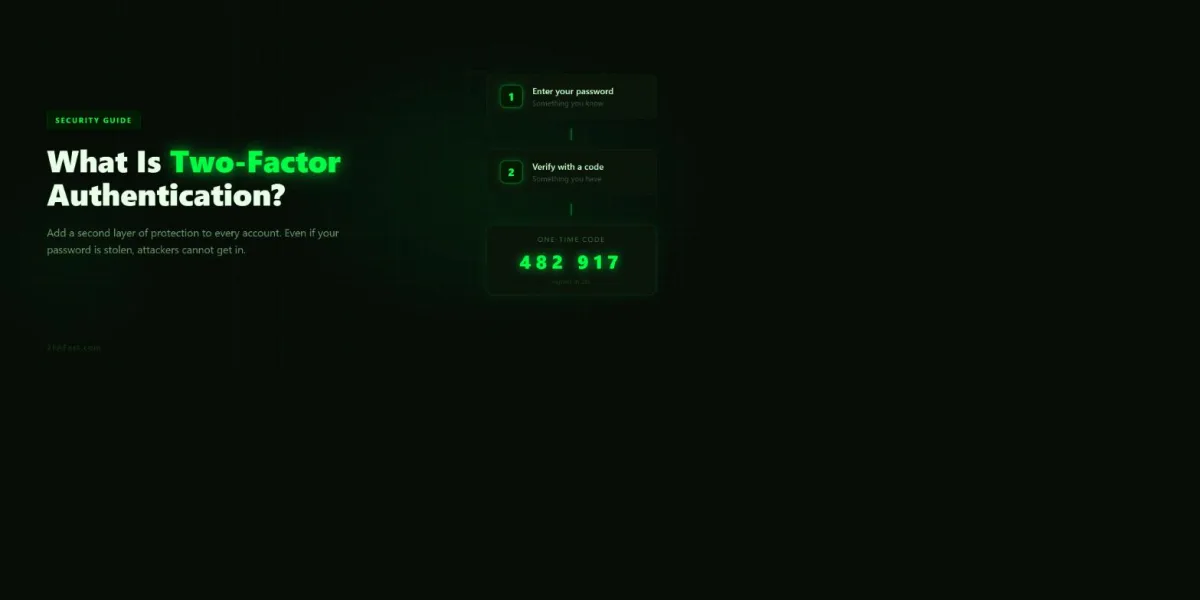
A password is a single piece of proof. Anyone who has it, whether that's you, a hacker who bought it off a dark web marketplace, or a coworker who saw you type it, can log in as you. That's the fundamental weakness two-factor authentication (2FA) is built to fix. Instead of trusting one piece of evidence, 2FA requires two, from two different categories, before an account opens up.
The idea isn't new. Bank vaults have used two-key systems for decades: one key held by the branch manager, one by a separate officer, so no single person can open the vault alone. 2FA applies the same logic to your Gmail, your bank login, and your Instagram account.
The Three Factor Categories, With Real Examples
Security professionals group every authentication method into one of three buckets. Understanding these categories makes it obvious why "password plus a second password" isn't real 2FA, and why a fingerprint plus a password is.
- Something you know: a password, a PIN, the answer to "what street did you grow up on." Easy to use, but easy to phish, guess, or leak in a breach.
- Something you have: your phone running an authenticator app, a physical YubiKey, a smart card. An attacker on the other side of the world doesn't have this, even if they have your password.
- Something you are: a fingerprint, a face scan, a retina pattern. Can't be reset if compromised, which is exactly why it's usually paired with, not used instead of, the other two.
Genuine 2FA always combines two different categories. A password plus a security question is still just "something you know" twice, and offers almost no real protection against a breach that exposed both. A password plus a code from your phone is a password (something you know) plus a device (something you have), which is why it actually works.
What Actually Happens When You Log In With 2FA On
It helps to walk through a real login instead of reading an abstract description. Say you're logging into Gmail from a new laptop with 2FA enabled through an authenticator app:
- You type your email address and password. Google's server checks it against the stored hash and confirms it's correct.
- Instead of dropping you straight into your inbox, Google now asks for a second verification step, because it doesn't recognize this laptop.
- You open your authenticator app. It's already showing a 6-digit number that refreshes every 30 seconds, generated locally on your phone without any network request.
- You type that number into the browser before it expires.
- Google's server runs the same calculation independently using the secret it stored when you first set up 2FA. If the numbers match, you're in. If someone across the world had your password but not your phone, they'd be stuck at this exact step.
The entire process usually adds ten to fifteen seconds to a login. On a device you've already marked as trusted, most services skip this step for weeks or months at a time, so in practice you barely notice it.
Ranking the 2FA Methods by Real Security, Not Marketing
Not every "2FA" option is equally strong. Here's how the common methods actually stack up, from weakest to strongest, based on how they fail in the real world.
1. Email codes, weakest
A code sent to your inbox only helps if your email is a genuinely separate, well-protected account. If an attacker already has your password and your email uses the same or a related password, this "second factor" adds almost nothing.
2. SMS text codes, weak but better than nothing
Convenient, and vastly better than a password alone, but vulnerable to SIM swapping, where an attacker convinces your carrier to move your number to their SIM card, and to SS7 network interception. It's fine for a forum account. It's a real risk for your bank or email. See our full breakdown in Is SMS 2FA Safe? and how SIM swaps work in SIM Swapping Attacks Explained.
3. Push notifications, solid for daily use
Apps like Duo or Microsoft Authenticator send a one-tap "approve or deny" prompt. Easy and reasonably secure, though it introduced a new attack: "MFA fatigue," where an attacker spams approval requests hoping you'll tap yes by accident. Always deny and investigate any push you didn't trigger yourself.
4. Authenticator app codes (TOTP), strong for almost everyone
Time-based one-time passwords generated entirely on your device, with nothing transmitted over the network. Immune to SIM swapping and network interception. This is the sweet spot of security and convenience for the vast majority of accounts. Read exactly how the math works in our TOTP deep dive, or generate a secret with our free secret generator.
5. Hardware security keys, strongest available
A physical USB or NFC key using the FIDO2/WebAuthn standard. The key cryptographically checks that the website's domain matches what it originally registered with, which means a phishing site simply can't trick it, even a perfect pixel-for-pixel copy of a real login page. Full guide: Hardware Security Keys: The YubiKey Guide. For anyone curious about the newest passwordless option built on the same standard, see What Is a Passkey?.
What the Research Actually Shows
Google's own security team ran a large-scale study on exactly this question in 2019, tracking real hijacking attempts against Google accounts. The results were striking: on-device prompts (the push-notification style of 2FA) blocked 100% of automated bot attacks, 99% of bulk phishing attempts, and 90% of targeted attacks against specific individuals. Even the weakest option, SMS codes, still blocked 100% of automated bots and 96% of bulk phishing attempts.
The takeaway isn't that any single method is perfect. It's that adding almost any second factor, even an imperfect one like SMS, closes off the overwhelming majority of attacks that rely on a stolen password alone. Automated credential-stuffing bots, which try millions of breached username and password pairs against login pages every day, simply cannot supply a second factor they don't have.
Setting Up 2FA in Under Five Minutes
Here's the actual process for turning it on for the first time:
- Install an authenticator app: Google Authenticator, Microsoft Authenticator, or Authy all work identically for this purpose.
- Log into the account you want to protect and find "Two-Factor Authentication," "2-Step Verification," or "Security" in its settings.
- Choose "Authenticator app" as the method, and it will show you a QR code.
- Scan the QR code with your app. It instantly starts generating a 6-digit code that changes every 30 seconds.
- Type the current code back into the website to confirm the setup worked.
- The site will show you a set of one-time backup codes. Write them down or save them in a password manager, not on your phone, since a lost phone is exactly the scenario they exist for.
Want to see a live TOTP code without installing anything? Our browser-based 2FA generator runs entirely client-side, so you can test the process before committing to an app.
Frequently Asked Questions
What happens if I lose my phone with the authenticator app on it?
Use one of the backup codes you saved during setup to log in, then register a new device as your authenticator. Without a backup code and without access to the old phone, account recovery usually requires the service's identity verification process, which can take days. This is exactly why saving backup codes at setup time matters.
Is 2FA the same thing as MFA?
MFA (multi-factor authentication) is the umbrella term. 2FA specifically means exactly two factors. Every 2FA setup is a form of MFA, but MFA can also mean three or more factors, which some banks and government systems require for their most sensitive operations.
Can someone still hack an account that has 2FA enabled?
It's much harder but not theoretically impossible. The two real-world attack paths are real-time phishing, where a fake login page relays your code to the real site within seconds, and SIM swapping against SMS codes specifically. Both are defeated by switching to an authenticator app or a hardware key, since neither can be relayed or intercepted the way a text message can.
Does turning on 2FA make logging in annoying?
It adds roughly ten to fifteen seconds the first time you log in from a new device or browser. Most services then remember that device for weeks, so you rarely see the prompt again until you clear cookies or use a new machine.
Which method should I actually pick?
For everyday accounts, an authenticator app is the best balance of security and convenience. For your email and financial accounts specifically, since those two unlock everything else, a hardware security key is worth the ten-dollar cost and five minutes of setup time.